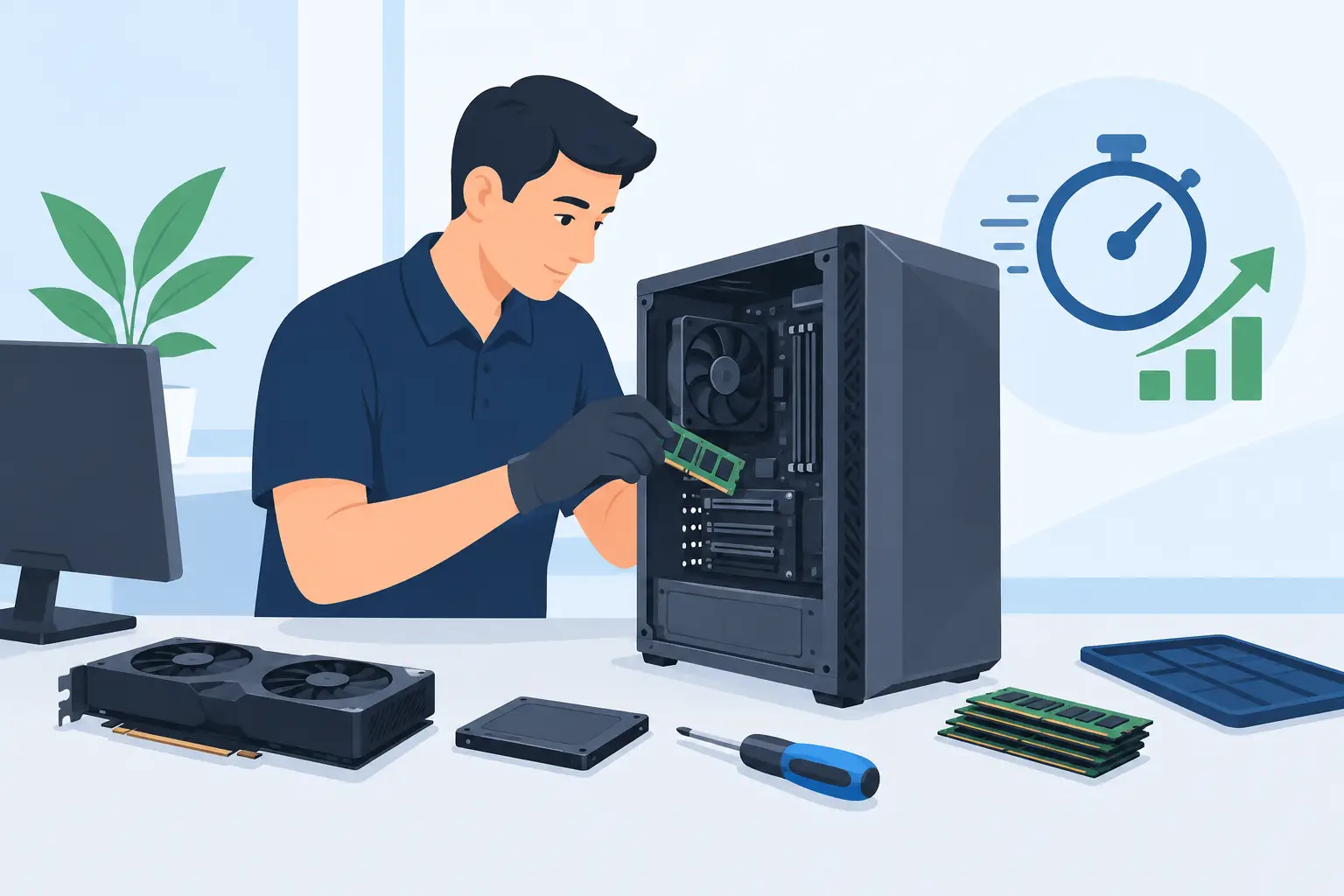
A slow computer rarely fails at a convenient time. It freezes during a client call, struggles with a large spreadsheet, or takes so long to start that employees lose productive minutes before the day has begun. A professional PC hardware upgrade service can solve those problems without automatically requiring a full computer replacement. The right upgrade restores performance, extends useful device life, and helps protect the files and systems your work depends on.
For small businesses, home offices, and households across Los Angeles County, the goal is not to buy the most expensive component. It is to make a practical decision based on how the computer is used, what is slowing it down, and whether the investment will deliver dependable results.
When a PC Hardware Upgrade Service Makes Sense
A computer that feels outdated is not always beyond saving. Many desktop PCs and some laptops can gain years of reliable use with targeted hardware improvements. In other cases, upgrading an older machine costs more in time, labor, and risk than replacing it. A technician should help make that distinction before parts are ordered.
An upgrade is often a strong option when the computer has a healthy motherboard, compatible operating system, and no major signs of electrical or storage failure. It can be especially worthwhile for workstations used for office applications, accounting software, web-based business systems, email, remote work, or everyday home use.
Common signs that an upgrade may help include:
- Long startup times or frequent spinning-wheel delays
- Slow performance when several programs or browser tabs are open
- Low-storage warnings that keep returning
- Trouble handling video meetings, large files, or newer software
- Fan noise, overheating, or sudden performance drops under normal workloads
These symptoms do not all point to the same repair. A full hard drive can look like a memory problem. Malware, failing storage, outdated drivers, and a weak Wi-Fi connection can also make a computer feel slow. That is why diagnosis comes before recommending hardware.
The Upgrades That Usually Deliver the Most Value
Solid-state drive upgrades
Replacing an older mechanical hard drive with a solid-state drive, often called an SSD, is one of the most noticeable improvements available. Traditional hard drives use spinning disks and moving parts. SSDs access data much faster, which can significantly improve startup times, application loading, file searches, and general responsiveness.
For a small office, an SSD upgrade can reduce the daily frustration of waiting for computers to wake up and open essential programs. For a home user, it can make a familiar PC feel dramatically more responsive. It also provides an opportunity to review data backup, because transferring files and operating systems should be handled carefully.
Not every SSD is identical. Capacity, connection type, drive health, and the computer’s compatibility all matter. A technician can determine whether the computer supports a standard SATA drive, an M.2 drive, or a faster NVMe option, then choose a solution that fits the device and budget.
Memory upgrades
Random access memory, or RAM, gives a computer room to work. When memory is limited, the system relies more heavily on storage to juggle active tasks, which can cause lag when users run multiple applications at once.
Adding RAM can be helpful for staff who keep email, accounting software, cloud storage, browser tabs, PDF files, and video conferencing tools open throughout the day. It also benefits users working with photos, design files, and larger spreadsheets. However, memory is not a cure-all. If the primary problem is an aging hard drive or an overloaded processor, more RAM alone may deliver only a modest improvement.
A proper assessment checks how much memory the computer supports, what type it requires, and whether existing modules can be safely matched or should be replaced as a set.
Storage expansion and data organization
Running out of disk space is more than an inconvenience. It can prevent updates, slow down the operating system, and complicate reliable backup. Storage expansion may involve installing a larger internal drive, adding a secondary drive to a desktop, or moving appropriate files to a secure managed storage solution.
Businesses should be cautious about treating extra storage as a substitute for data management. Old downloads, duplicate files, and unprotected local data can become a security and recovery problem. A thoughtful upgrade includes a review of what needs to remain on the device, what should be backed up, and who needs access.
Graphics, networking, and specialized components
Some workstations need more than an SSD and memory. Architecture, engineering, video production, medical imaging, and design applications can require a capable graphics card. A weak or aging wireless adapter may limit remote work performance, while desktop users may benefit from a faster wired network connection.
These upgrades are more dependent on compatibility. A graphics card, for example, must fit the computer case, work with the power supply, and be supported by the system. Installing a powerful part in an older machine without checking those limits can create heat, stability, or power issues. The best answer depends on the workload, not the product label.
Why Compatibility and Data Protection Come First
Hardware upgrades involve more than opening a computer and swapping parts. The device needs to be evaluated for physical condition, operating system support, manufacturer restrictions, and available power and cooling. Laptops can be particularly limited because some models have soldered memory or storage that is difficult to access.
Data protection should be part of every upgrade conversation. A storage replacement, operating system migration, or major repair can expose weaknesses in an existing backup plan. Important business documents, financial records, customer information, and family photos should be verified before work begins, not after a drive has failed.
For businesses, there is also a security consideration. An older PC may no longer receive operating system updates or may lack the hardware needed for modern security features. In that case, spending money on upgrades could delay a necessary replacement without reducing risk. Clear advice means acknowledging when replacement is the better long-term investment.
What to Expect From a Professional Upgrade Appointment
A reliable PC hardware upgrade service starts with questions about the issue, the computer’s age, the programs in use, and the user’s goals. A business owner may need faster access to cloud applications for a five-person office. A home-office professional may need stable video calls and better performance with large documents. A household may simply want a dependable computer for school, banking, and communication.
The technician should inspect the system, identify the actual performance bottleneck, confirm compatible options, and explain the trade-offs in plain language. You should know what parts are being recommended, why they are appropriate, what the work will cost, and whether a replacement should be considered instead.
Installation is only one step. A complete service can include data backup verification, operating system and driver updates, malware checks, cable and cooling inspection, testing, and confirmation that critical applications still work as expected. For a business, it may also include reconnecting printers, network drives, email, security tools, and remote access systems.
This process matters because a faster computer that cannot access the office network or open the accounting application is not a successful upgrade. The outcome should be a device that is ready to work, not merely a device with new parts.
Upgrade or Replace? Make the Decision on Total Value
The lower upfront cost of an upgrade can be appealing, but it should be weighed against the computer’s remaining life. A three- to five-year-old PC with a good processor may be an excellent candidate for an SSD and memory upgrade. A much older computer with an unsupported operating system, recurring failures, limited compatibility, or weak processing power may be better replaced.
Businesses should also consider downtime. Replacing one computer may be less disruptive than repeatedly repairing it, especially when the machine supports a key employee or shared office function. Standardizing devices can simplify support, security updates, onboarding, and inventory management.
Azusa Technology helps customers assess those practical factors, whether the need is one upgraded home computer or a coordinated equipment refresh for an office. The recommendation should fit the way you work, the condition of the equipment, and the level of reliability you need.
A computer upgrade should leave you with fewer interruptions, not another technology project to manage. Before you spend money on parts or a replacement, have the system evaluated, protect the data that matters, and choose the option that gives you dependable performance for the work ahead.