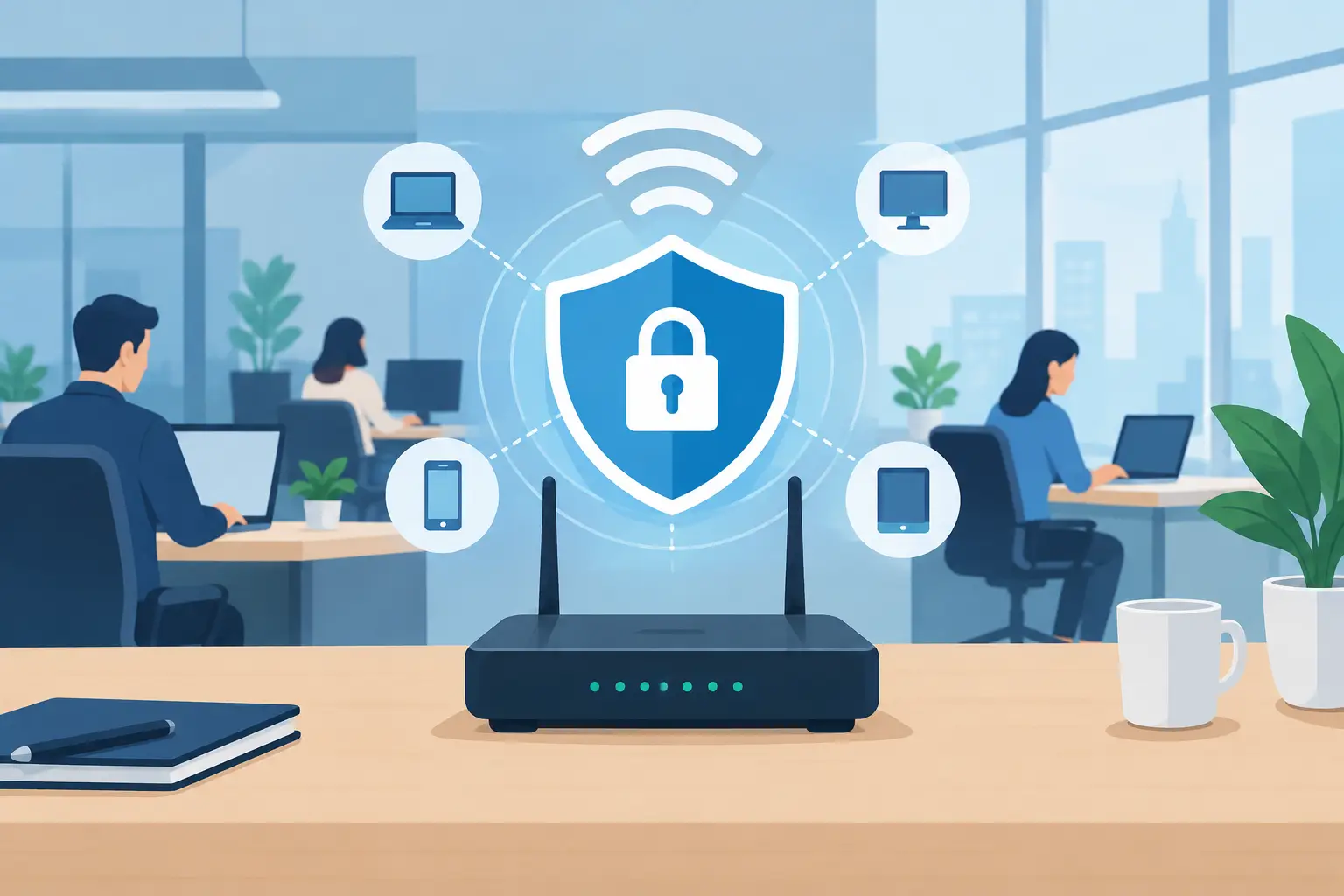
A router is easy to overlook when everything is working. But when an office router is poorly protected, it can become the doorway to email accounts, financial records, cloud files, cameras, phones, and every connected computer in the business. Knowing how to secure office routers is not about making technology complicated. It is about preventing a small, avoidable weakness from turning into costly downtime.
For small and midsize businesses, the goal is a network that employees can use without frustration and owners can trust. The right approach combines sensible router settings, secure Wi-Fi practices, regular updates, and ongoing attention to unusual activity.
Start With the Router’s Admin Access
Every business router has an administrative control panel. This is where someone can change Wi-Fi names, passwords, security settings, port forwarding rules, and other options that affect the entire network. Leaving the factory login in place is one of the most common and risky oversights.
Change the default administrator username, if the device allows it, and create a long, unique password. Avoid company names, addresses, birthdays, or passwords used for email and other accounts. Store the credential in an approved password manager so access does not disappear when one employee leaves or is unavailable.
Administrative access should also be limited to the office network whenever possible. If remote router management is not needed, turn it off. If it is needed for a trusted IT provider or a designated administrator, protect it with multi-factor authentication where available and limit access to specific approved users or IP addresses.
Keep Router Firmware Current
Router manufacturers release firmware updates to correct security flaws, improve stability, and address compatibility issues. An unpatched router can remain exposed long after a known vulnerability has been identified.
Check whether the router supports automatic security updates. This is a good option for many offices, but it should be managed thoughtfully. Some updates may require a restart, which can briefly interrupt internet and phone service. For a business that depends on constant connectivity, schedule updates outside normal hours or coordinate them with an IT professional.
It also helps to know the router’s age and support status. Older equipment may no longer receive security updates, even if it still appears to work. A router that has reached end of life should be replaced rather than treated as a permanent fixture. The cost of a current, business-appropriate device is usually far less than the disruption of a network incident.
How to Secure Office Routers With Better Wi-Fi Settings
Wi-Fi should be protected with WPA3 when all critical devices support it. If older equipment cannot use WPA3, WPA2-AES is the practical minimum. Avoid outdated security options such as WEP, WPA, or WPA2-TKIP. They may still appear in a router’s settings, but they are not appropriate for a business network.
Use a strong wireless password that is separate from the router administrator password. Staff should not need the admin credential to connect a laptop or phone to Wi-Fi. Change the wireless password when an employee with access leaves, particularly if the office has shared it broadly over time.
The Wi-Fi network name, also called the SSID, should not identify the business in a way that gives away useful details. For example, avoid names that reveal the company, suite number, equipment brand, or a manager’s name. A simple, neutral name is better.
Guest Wi-Fi deserves its own network. Visitors, vendors, and personal devices should not share the same network segment as workstations, printers, servers, payment terminals, or file storage. A guest network lets people get online without creating unnecessary access to business resources. Set a separate password and, if possible, apply limits that prevent guest devices from communicating with internal systems.
Separate Devices That Do Not Need to Trust Each Other
Many offices now connect more than computers. Printers, security cameras, conference room displays, VoIP phones, smart televisions, door controllers, and Internet of Things devices can all be on the network. These tools are useful, but each connected device is another system that needs to be managed.
Network segmentation separates these device types into different zones. For example, employee computers can use one network, guests another, and cameras or smart devices a third. If a less secure device is compromised, segmentation can reduce the chance that the problem spreads to sensitive files or employee accounts.
This does not have to mean a large enterprise-level project. The right setup depends on the size of the office, the router or firewall capabilities, and the types of devices in use. A small professional office may need only a secure staff network and guest network. An office handling confidential client data, payments, or healthcare information may need more detailed separation and access controls.
Review Remote Access and Port Forwarding
Remote access makes it possible to support systems off-site, but it must be configured carefully. Features such as port forwarding can expose internal services directly to the internet. A rule created years ago for remote desktop access, a camera system, or a temporary vendor project may remain active long after it is needed.
Review port forwarding rules and disable anything that is not clearly documented and necessary. Do not expose router management pages, Remote Desktop Protocol, network-attached storage, or similar services directly to the public internet unless there is a documented security design around them.
For employees who need secure access from home or while traveling, a properly configured virtual private network is generally safer than opening individual services to the internet. Multi-factor authentication should protect remote access whenever possible. Convenience matters, but one compromised password should not provide an outsider with a direct route into the office.
Turn Off Features You Are Not Using
Routers often ship with convenience features enabled, including Universal Plug and Play, WPS push-button pairing, remote administration, and automatic port mapping. Some may be useful in a home setting, but they can create unnecessary risk in an office.
Disable unused services after confirming that they will not affect a business application. WPS should generally be turned off because it is not needed for routine office Wi-Fi connections. UPnP should also be disabled unless a specific, understood application requires it. If a feature is needed, document why it is enabled and review it periodically.
This principle applies to every account and setting: if it is not required for business operations, it should not be available simply because the router offers it.
Monitor the Network and Keep a Simple Record
Security is not a one-time setup task. Review the list of devices connected to the router on a regular schedule. Unknown devices may be harmless, such as a new employee phone, but they should always have an explanation. Make sure former employees’ devices, old tablets, unused cameras, and retired computers no longer have access.
Keep a simple record of the router model, serial number, location, administrator access process, Wi-Fi networks, firmware update schedule, and any special rules. This saves time during an outage and helps avoid unsafe changes when staff members change roles.
For many businesses, 24/7 network monitoring adds another layer of protection. Monitoring can identify failed hardware, unusual traffic, internet outages, and signs that a device needs attention before staff lose a full day of work. It cannot replace sound configuration, but it makes problems easier to spot and resolve quickly.
Build Router Security Into Everyday IT Operations
A secure router works best alongside secure computers, protected email accounts, reliable backups, and clear employee practices. If staff reuse passwords, click convincing phishing emails, or install unapproved software, the router alone cannot eliminate risk. On the other hand, a well-managed router can limit exposure and help contain problems when something goes wrong.
Assign responsibility for network changes, even if that responsibility belongs to an outside IT partner. Employees should know who to contact when they need to add a printer, connect a new device, or provide Wi-Fi to a visitor. That process prevents well-meaning people from changing critical settings on their own.
Azusa Technology helps Los Angeles County businesses assess network equipment, improve Wi-Fi security, manage firewalls, and keep systems monitored without burying owners in technical jargon. The best time to review a router is while the office is calm, not after suspicious activity or an internet outage forces the issue.
A few careful changes now can protect far more than a Wi-Fi signal. They help keep your team productive, your data private, and your business ready for the next normal workday.