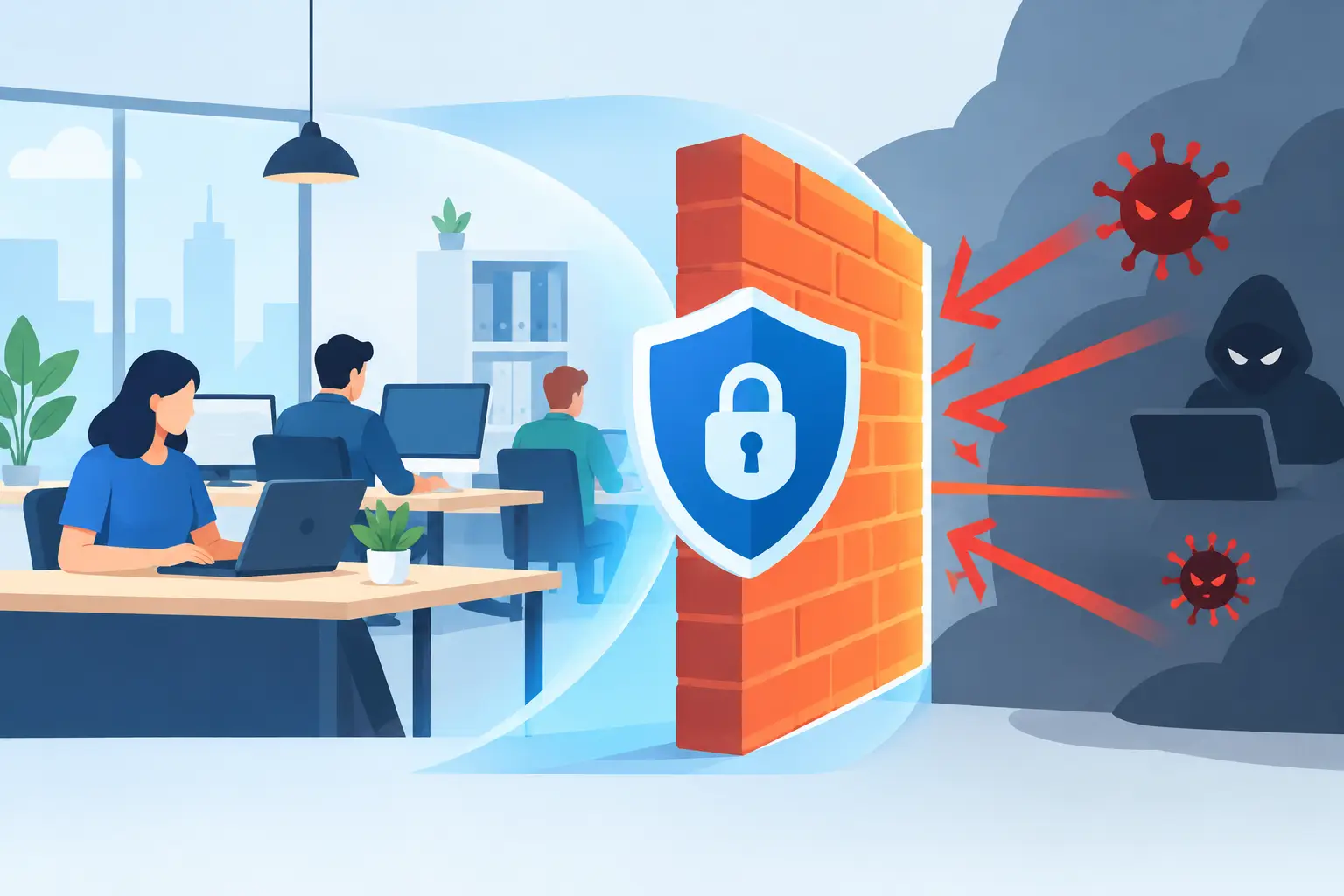
A compromised email account, an unprotected remote desktop connection, or a guest Wi-Fi network that reaches business devices can create a serious problem fast. Firewall setup for small businesses is not just about placing a security appliance between your office and the internet. It is about controlling who and what can access your network, reducing avoidable risk, and keeping your team productive.
For a small office, the right firewall should work quietly in the background. It should block suspicious activity, support secure remote work, protect sensitive client information, and give you clear visibility when something needs attention. Getting there requires more than accepting a device’s default settings.
Why firewall setup for small businesses deserves attention
Many businesses rely on the router provided by their internet company. That device may be adequate for basic connectivity, but it is rarely configured for the security needs of a growing office. It may lack advanced threat protection, detailed reporting, network segmentation, or reliable support for secure remote access.
A business firewall creates rules for traffic entering and leaving your network. It can block known malicious websites, stop unauthorized connection attempts, inspect unusual traffic, and separate business systems from less trusted devices. Depending on the model and subscription, it may also provide intrusion prevention, web filtering, application controls, virtual private network access, and alerts.
The business impact is practical. A properly configured firewall can help prevent downtime caused by malware, reduce the chance of customer data being exposed, and keep a single infected device from spreading trouble across the office. It is one part of a larger security plan, alongside backups, endpoint protection, strong passwords, and staff awareness.
Start with the network you actually have
Before selecting settings or replacing equipment, take inventory. Small businesses often have networks that grew one device at a time: a new printer here, an office camera there, a personal laptop connected during a busy week. That makes it difficult to know what the firewall should allow and what it should deny.
Identify your internet connection, wireless access points, switches, computers, servers, printers, phones, cameras, cloud applications, and any equipment accessed remotely. Include devices that are easy to overlook, such as point-of-sale systems, smart TVs in conference rooms, door controllers, and backup appliances.
Also document how people work. Do employees connect from home? Does an outside vendor need access to a server or camera system? Do staff use cloud accounting software, medical applications, or other services with specific connectivity requirements? Firewall rules should support legitimate work without leaving broad openings that are difficult to monitor.
A clear inventory also makes troubleshooting faster. When a new rule affects a printer, an application, or a remote employee, you have a starting point instead of guessing.
Choose business-grade protection, not just faster Wi-Fi
A firewall should be selected for your security requirements and expected internet use, not only for its advertised speed. An office with video meetings, cloud backups, remote users, and security filtering needs more capacity than a small office that only checks email and runs browser-based software.
Look for a business-grade firewall that supports centralized management, security updates, encrypted VPN access, traffic logging, and network segmentation. Threat detection and web filtering can be particularly useful for organizations that handle customer records, financial information, or regulated data.
There is a trade-off. More advanced inspection can affect performance if the firewall is undersized or features are turned on without proper planning. A lower-cost device can become expensive if it creates slow connections, frequent outages, or gaps in protection. The best fit depends on the number of users, the applications they rely on, remote-work needs, and how much support your team needs after installation.
Configure the basics before adding exceptions
A secure firewall configuration begins with a simple principle: allow what the business needs and block what it does not. Default settings are a starting point, not a completed security plan.
First, change all default administrator credentials and use a long, unique password. Enable multi-factor authentication for firewall administration if the device supports it. Limit management access to approved internal devices or a secure VPN. A firewall management page should never be exposed openly to the internet.
Next, update the firewall’s firmware and enable automatic security updates where appropriate. Manufacturers regularly release fixes for newly discovered vulnerabilities. An unpatched firewall can become the weak point it was meant to protect.
Review inbound rules closely. Most small businesses do not need unsolicited inbound internet traffic. If a service must be reachable from outside the office, such as a remote access solution or a vendor-managed application, use the narrowest rule possible. Restrict access by user, device, source address, or VPN whenever feasible instead of opening a service to everyone online.
Outbound controls matter as well. Employees need access to business applications, but unrestricted outbound traffic can make it easier for malware to contact malicious servers. Web filtering, DNS protection, and application controls can reduce that exposure without interfering with normal work when configured thoughtfully.
Separate devices with network segmentation
One flat network puts every device in the same room, digitally speaking. If a guest phone, smart camera, or infected laptop gains access, it may be able to search for other devices and services. Network segmentation limits that risk by creating separate zones with rules controlling communication between them.
For many small businesses, separating the network into a few practical groups is enough: employee computers, servers or critical business systems, phones and printers, guest Wi-Fi, and internet-connected devices such as cameras or smart equipment. Guest Wi-Fi should provide internet access only, not access to company computers, printers, or shared files.
Segmentation should be planned carefully. Some devices need to communicate across networks. A staff computer may need to print, for example, while a camera system may need limited access to a recording device. Test the setup after each change rather than making many changes at once and hoping everything works.
Set up remote access the safe way
Remote work is normal for many Los Angeles County businesses, but remote access should not mean opening a direct path to an office computer. Avoid exposing Remote Desktop Protocol, network-attached storage, or firewall management tools directly to the internet unless there is a compelling, professionally managed reason.
A properly configured VPN is usually the safer approach. It encrypts traffic between an approved user and the business network, then allows access based on assigned permissions. Require multi-factor authentication, use individual accounts rather than shared credentials, and remove access promptly when an employee or vendor no longer needs it.
For some organizations, cloud applications and managed remote support tools may reduce the need for broad network access altogether. The right approach depends on your workflow, but convenience should not override access controls.
Monitor the firewall after installation
A firewall is not a set-it-and-forget-it purchase. Rules change as staff, software, and equipment change. Old exceptions can remain in place long after the reason for them has disappeared, creating unnecessary exposure.
Review logs and security alerts regularly. Look for repeated blocked connection attempts, unusual login activity, unknown devices, unexpected outbound traffic, and systems trying to reach suspicious destinations. Not every alert is an emergency, but patterns deserve attention.
A practical maintenance routine should include these ongoing tasks:
- Apply firmware and security updates on a planned schedule.
- Review administrator accounts, VPN users, and remote access permissions.
- Remove outdated rules, unused port forwards, and inactive devices.
- Test backup systems and confirm they are protected from unauthorized network access.
- Document configuration changes so future troubleshooting does not disrupt operations.
If no one on staff has the time or confidence to review these items, managed firewall support can provide the oversight without requiring an in-house IT department.
Avoid the common setup mistakes
The most common mistake is treating the firewall as the entire security strategy. Even the best firewall cannot protect a business when an employee enters credentials into a convincing phishing page, a laptop has no updates, or backups have never been tested.
Another mistake is creating overly broad rules to solve an immediate problem. Opening all ports, allowing unrestricted remote access, or placing every device on the same network may fix a short-term connection issue while creating a long-term security problem. A better process is to identify the exact application, device, and traffic requirement, then create the smallest workable exception.
Finally, do not overlook documentation. When a business changes internet providers, moves offices, adds a new phone system, or needs emergency support, clear network records save time and prevent risky guesswork.
Azusa Technology helps local businesses configure, monitor, and maintain networks with practical security in mind. The goal is not to make technology feel complicated. It is to give your business a network that supports daily work, protects what matters, and does not become another item on your already full to-do list.
A good firewall setup should leave your team with fewer interruptions, clearer control over access, and confidence that your network is being looked after as your business changes.